
Table of Contents
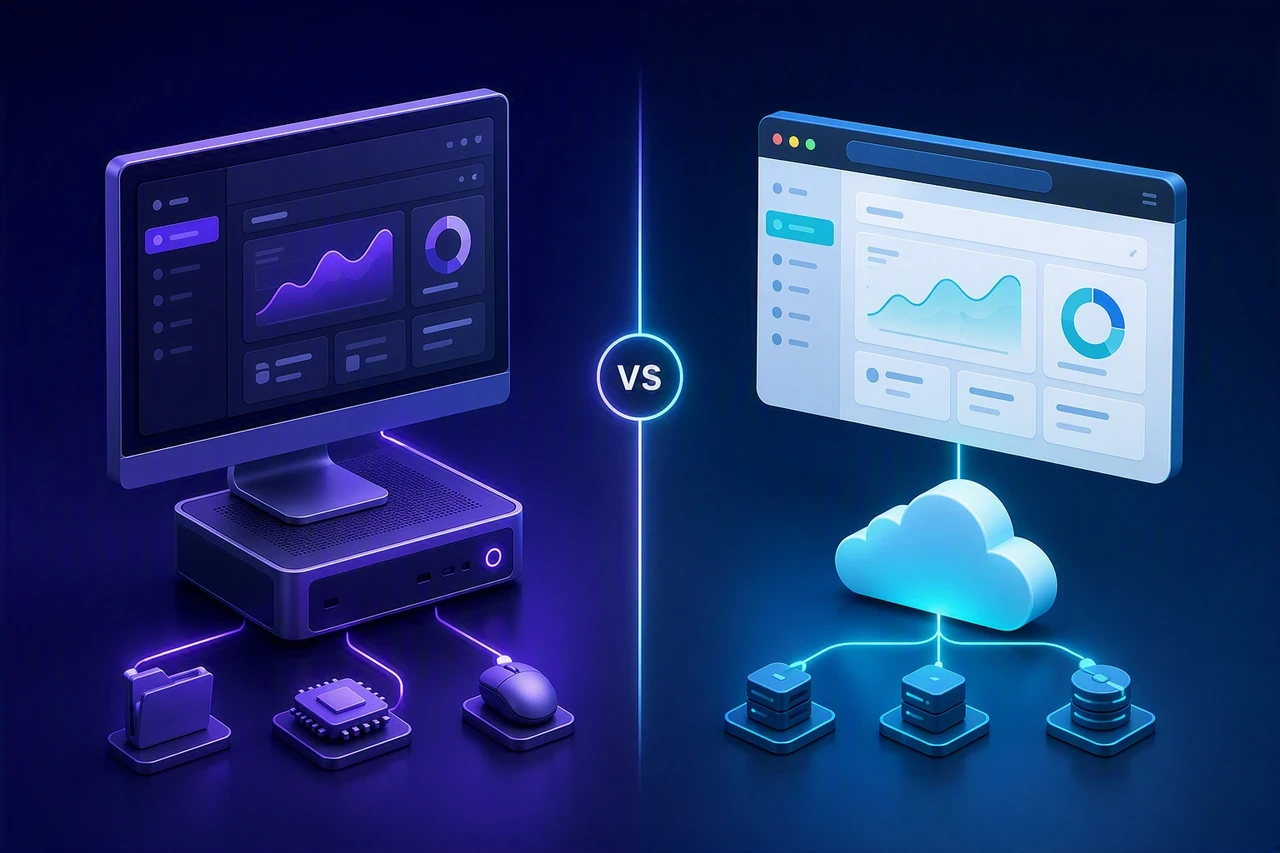
Choosing between a desktop and web application is not simply a question of which technology is better. The right delivery model depends on where users work, how much local processing the product requires, whether it must function offline, and how the organization plans to deploy, secure, and maintain it.
Build a desktop application when sustained local performance, specialized hardware access, extensive file-system control, or reliable offline operation is non-negotiable. Build a web application when broad accessibility, centralized updates, real-time collaboration, and low-friction deployment matter most. Some products benefit from separate desktop and web experiences when different user groups have genuinely different workflows.
This guide compares the two models across performance, deployment, offline capabilities, hardware access, security, scalability, user experience, maintenance, and total cost of ownership.
Key Takeaways
- Choose desktop for local power: Desktop applications are better suited to sustained local compute, deep operating-system integration, specialized peripherals, and offline-first workflows.
- Choose web for reach: Web applications provide browser-based access, centralized releases, easier collaboration, and server-side scalability.
- Neither model is inherently more secure: Security depends on the architecture, data sensitivity, deployment environment, update process, and operational controls.
- Compare total lifecycle cost: Include development, infrastructure, platform testing, deployment, security, support, and maintenance, not only the initial build.
- Consider dual delivery selectively: Separate desktop and web experiences can make sense when they serve clearly different users or workflows.
What Is a Desktop Application vs a Web Application?
A desktop application is installable software designed to run on Windows, macOS, or Linux. It may be built for one operating system or use cross-platform technologies, but it runs primarily on the user’s computer and can integrate closely with local files, hardware, and operating-system services. Learn more about Scopic’s desktop application development services.
A web application is software accessed through a web browser. Its interface runs in the browser, while its data and processing may be handled locally, remotely, or through a combination of browser and server resources. Learn more about Scopic’s web application development services.
This comparison does not cover Android or iOS application architecture. Readers evaluating mobile delivery models should refer to Scopic’s guide to native, web, and hybrid mobile applications.
Desktop vs Web Application: Key Differences
| Criterion | Desktop application | Web application | Decision implication |
|---|---|---|---|
| Accessibility | Requires installation on a supported Windows, macOS, or Linux device | Accessible through a supported browser and URL | Web generally reduces access friction |
| Deployment | Distributed through installers, app stores, enterprise tools, or managed devices | Deployed centrally through web infrastructure | Web generally enables faster rollout |
| Updates | Adoption may depend on users, auto-updaters, stores, or IT policies | Updates are centrally controlled, although caching and active sessions can delay adoption | Web simplifies version management |
| Offline use | Can support fully local workflows when designed accordingly | Can support selected offline flows through caching and local storage | Desktop is usually stronger for offline-first requirements |
| Performance | Can use sustained local CPU, GPU, memory, and storage | Can combine browser processing with server-side compute | The better model depends on workload and latency |
| Hardware/OS access | Deeper access to local files, peripherals, drivers, and OS services | Access is mediated by browser APIs, permissions, and browser support | Desktop suits specialized integration |
| Security and data control | Focuses on endpoint security, local data, binary integrity, and update adoption | Focuses on authentication, sessions, APIs, servers, and cloud configuration | Neither model is inherently safer |
| Scalability | Distributes much of the compute workload across user devices | Can scale services centrally through cloud infrastructure | Web simplifies centralized scaling but adds infrastructure costs |
| UX (User experience) | Supports native controls, multi-window workflows, shortcuts, and OS integration | Offers low-friction access and consistent browser-based workflows | Match the UX model to how users work |
| Total cost | Includes OS support, packaging, testing, updates, and endpoint support | Includes hosting, DevOps, monitoring, backend scaling, and browser testing | Compare total lifecycle cost, not only development cost |
The choice is therefore not “desktop for performance” versus “web for convenience.” Teams should identify non-negotiable workflow constraints first and compare lifecycle trade-offs second.
Performance and Hardware Access
Desktop applications have an advantage when a workflow requires sustained local CPU or GPU use, large local datasets, custom drivers, specialized peripherals, or very low interaction latency. This commonly applies to engineering, scientific visualization, medical imaging, media processing, and device-connected software.
Web applications are not automatically slower. They can use client-side processing, WebAssembly, WebGPU, and powerful server-side infrastructure. However, capabilities such as WebUSB and direct file-system access remain dependent on browser support, security permissions, and organizational browser policies. MDN still classifies WebUSB as having limited availability.
- Favor desktop when: Local processing, specialized hardware, unrestricted file handling, or predictable low latency is essential.
- Favor web when: Standard browser capabilities are sufficient or processing can be handled efficiently on the server.
- Consider both when: Power users need intensive local functionality while other users need lighter access, review, or collaboration.
Accessibility, Deployment, and Updates
Web applications usually reduce deployment friction because users access the centrally deployed version through a browser. Desktop software requires packaging, distribution, installation, and an update mechanism for every supported operating system. However, desktop auto-updaters, app stores, and enterprise management platforms can significantly reduce manual maintenance.
Accessibility is not guaranteed by either model. Desktop applications can benefit from native operating-system controls and accessibility APIs, while web applications can use semantic HTML and established browser accessibility standards. Custom interfaces in either model require keyboard, screen-reader, focus, contrast, and scaling testing.
Before selecting a deployment model, confirm:
- Which operating systems or browsers must be supported?
- Will users install the software themselves, or will IT manage deployment?
- How quickly must security and feature updates reach users?
- Must older versions continue operating?
- Which accessibility technologies and user environments require testing?
Offline Capabilities and Reliability
Desktop applications are generally better suited to offline-first workflows because core processing and data can remain on the device. However, a desktop product may still require connectivity for authentication, licensing, cloud synchronization, collaboration, or remote data.
Web applications can support offline or intermittent use through service workers, cached resources, IndexedDB, and synchronization logic. This capability must be designed deliberately: loading a cached interface is not the same as completing a full business workflow offline.
Classify the product as:
- Offline-first: Core tasks must work without a connection.
- Offline-tolerant: Users can complete selected tasks during short disruptions.
- Online-dependent: The workflow requires current server data or continuous collaboration.
The implementation should also define how the product handles synchronization conflicts, stale data, interrupted operations, local storage limits, and recovery after connectivity returns.
Security and Data Control
Security depends on the application’s architecture, data sensitivity, deployment environment, and operational controls—not simply whether it is delivered through a desktop or browser.
Desktop applications must protect local data, compromised endpoints, installers, binaries, credentials, and update channels. Web applications must secure authentication, user sessions, APIs, servers, databases, cloud infrastructure, and browser-facing interfaces.
Both models can use the NIST Secure Software Development Framework to structure secure development practices. Web development teams can also use the OWASP Top 10 to identify common application-security risks.
Security Responsibility Comparison
| Security area | Desktop focus | Web Focus |
|---|---|---|
| Primary attack surface | Local files, compromised endpoints, installers, binaries, and update channels | Authentication, sessions, APIs, servers, databases, and cloud configuration |
| Data protection | Device encryption, local access controls, secure credential storage, and backups | Encryption in transit and at rest, access controls, tenant isolation, and secure APIs |
| Patching | Requires reliable update distribution and adoption | Enables centralized patching but requires disciplined server and dependency management |
| Operational risk | Unmanaged or outdated user devices | Centralized infrastructure can increase the impact of a server-side incident |
| Compliance | Depends on device control, data handling, auditability, and deployment environment | Depends on hosting, data location, access controls, logging, and infrastructure governance |
Scalability, Maintenance, and User Experience
Desktop and web applications scale differently. Desktop software distributes much of the processing load across users’ devices, but the organization must manage installers, operating-system compatibility, version adoption, and endpoint support. Web applications centralize releases and backend scaling, but require ongoing cloud infrastructure, monitoring, capacity planning, and incident management.
Desktop applications are typically stronger for multi-window workflows, advanced keyboard interaction, drag-and-drop, local notifications, and close operating-system integration. Web applications are typically stronger when users need immediate access across locations and devices.
Neither model guarantees a better user experience. The interface should reflect how users work, which devices they use, how frequently they switch locations, and whether they need specialized local functionality.
Desktop vs Web Application Cost and Total Cost of Ownership
Neither desktop nor web development is universally cheaper. Total cost of ownership includes development, testing, deployment, infrastructure, security, support, and maintenance throughout the product’s lifecycle.
| Cost Driver | Desktop Impact | Web Impact |
|---|---|---|
| Development and QA | Cross-platform development, OS-specific testing, installers, and local integrations | Front-end, backend, browser, responsive, and integration testing |
| Deployment and updates | Packaging, signing, distribution, auto-update tooling, and version support | CI/CD, hosting environments, release management, and cache control |
| Infrastructure | Often uses endpoint compute but may still require cloud services | Hosting, databases, storage, bandwidth, scaling, monitoring, and backups |
| Offline functionality | Local databases, synchronization, conflict resolution, and recovery | Caching, browser storage, synchronization, and quota management |
| Security and compliance | Endpoint protection, binary integrity, local encryption, and update adoption | Authentication, API security, infrastructure hardening, monitoring, and patching |
| Support and maintenance | OS upgrades, device differences, installation issues, and older versions | Browser changes, server dependencies, infrastructure incidents, and continuous operations |
The lower-cost option is the one that satisfies the product’s requirements without creating unnecessary platform, infrastructure, or support obligations.
Use-Case Matrix: Which Model Fits Your Product?
| Use case | Recommended direction | Why |
|---|---|---|
| Medical imaging | Desktop-first or dual delivery | Diagnostic workstations, large local studies, DICOM integration, GPU processing, and controlled environments can favor desktop. Web supports remote review, access, and collaboration. |
| Engineering, CAD, and simulation | Desktop-first or dual delivery | Desktop suits intensive authoring, simulation, large files, and peripheral integration. Web suits review, sharing, approval, and project coordination. |
| Business or customer portals | Web-first | Portals typically benefit from URL-based access, centralized updates, account-based permissions, and broad device compatibility. |
| Internal enterprise software | Web-first unless local integration is required | Web is usually preferable for centralized business workflows. Desktop becomes stronger when the software requires offline operation, specialized equipment, OS automation, or tightly managed workstations. |
These recommendations are starting points rather than fixed rules. Medical-imaging and engineering products may use desktop software for intensive local workflows and web applications for remote access or collaboration. Business portals and general internal systems usually favor web delivery unless hardware, offline, or operating-system integration requirements change the decision.
Scopic’s work on StocksToTrade demonstrates this dual-delivery approach. Scopic developed both desktop and web versions, with the web application designed as a lighter browser-based experience for monitoring stocks and connecting trading accounts.
Decision Framework: When to Build a Desktop App vs a Web App
Use this framework after identifying the product’s non-negotiable requirements. Specialized hardware, air-gapped operation, dependable offline use, and sustained local processing generally point toward desktop delivery. If these requirements do not apply, a web application is often the more practical default for broadly accessible business software.
| Requirement | Favor desktop when | Favor web when |
|---|---|---|
| Connectivity | Core workflows must operate offline or in air-gapped environments | Users normally have reliable connectivity |
| Performance | Sustained local CPU/GPU use and low latency are essential | Browser performance or server-side processing is sufficient |
| Hardware access | The product requires custom drivers, specialized peripherals, or deep OS integration | Supported browser APIs cover the required device access |
| Deployment | Users have managed workstations or can install software | Immediate URL-based access is a priority |
| Updates | IT needs controlled or staged endpoint releases | The product requires frequent centralized releases |
| Collaboration | Work is primarily local or file-based | Real-time shared data and multi-user workflows are central |
| Security and data | Data must remain on controlled endpoints or local networks | Centralized access control, auditing, and infrastructure management are preferable |
| User experience | Users need advanced multi-window, shortcut, or OS-native workflows | Users need consistent, low-friction access across devices |
| Cost model | Using endpoint compute reduces central infrastructure requirements | Centralized hosting and operations fit the business model |
| Team capabilities | The team can support OS-specific packaging and testing | The team can operate secure, scalable web infrastructure |
Satisfy non-negotiable requirements first. Then compare deployment, maintenance, infrastructure, support, and total cost. Consider separate desktop and web versions only when they will serve clearly differentiated users or workflows.
Conclusion
Choose a desktop application when the product depends on sustained local processing, specialized peripherals, extensive operating-system integration, or reliable offline operation. Choose a web application when broad accessibility, centralized deployment, collaboration, and rapid updates are the higher priorities. If different user groups have materially different requirements, separate desktop and web experiences may be justified.
Scopic develops software across both delivery models, from interactive desktop tools for medical imaging and engineering workflows to scalable browser-based platforms and business applications. Our team can evaluate your workload, users, connectivity, hardware, security, and lifecycle requirements before recommending an architecture.
If you are deciding between desktop and web development, contact Scopic to discuss the right delivery model for your product.
FAQ: Desktop vs Web Application
What is the main difference between a desktop application and a web application?
A desktop application is installed on Windows, macOS, or Linux and runs primarily using the computer’s local resources. A web application is accessed through a browser and may use local browser processing, remote services, or both. This difference affects deployment, updates, offline use, hardware access, security responsibilities, and maintenance.
When to build a desktop app?
Build a desktop app when the product requires sustained local processing, specialized peripherals, extensive file-system access, deep operating-system integration, or dependable offline operation. Desktop delivery can also suit controlled or air-gapped environments. However, the delivery model alone does not determine whether an application is secure or compliant.
Can a web app work offline?
Yes. A web application can support selected offline workflows through service workers, cached resources, IndexedDB, and synchronization logic. Its practical limits depend on browser support, storage quotas, synchronization design, and required hardware access. Teams should distinguish between loading an interface offline and completing an entire business workflow without connectivity.
Web app vs desktop app: which costs more to build and maintain?
Neither model is universally more expensive. Desktop costs can include cross-platform development, packaging, OS testing, update infrastructure, and endpoint support. Web costs can include backend development, cloud hosting, monitoring, bandwidth, security operations, and browser testing. The correct comparison is total lifecycle cost based on the product’s requirements and expected usage.
Can the same product have desktop and web versions?
Yes. A product can offer desktop and web versions when different users need different capabilities. For example, power users may need a desktop application for intensive local processing, while occasional users need a lighter web interface for access, review, or collaboration. Development teams can share selected business logic, but each version should have a clearly defined purpose.
This guide was written by Scopic Team
Scopic provides quality and informative content, powered by our deep-rooted expertise in software development. Our team of content writers and experts have great knowledge in the latest software technologies, allowing them to break down even the most complex topics in the field. They also know how to tackle topics from a wide range of industries, capture their essence, and deliver valuable content across all digital platforms.



 Message Scopio